> ## Documentation Index
> Fetch the complete documentation index at: https://www.pierview.ai/docs/llms.txt
> Use this file to discover all available pages before exploring further.
# WordPress Plugin
> Track AI agent traffic on your WordPress site with Pierview Agent Analytics
## Overview
The Pierview Agent Analytics plugin detects when AI agents visit your WordPress site and reports those visits to your Pierview dashboard. It identifies traffic from 25+ AI agents, including ChatGPT, Claude, Perplexity, Gemini, Grok, and more, giving you a clear picture of how AI systems are crawling and consuming your content.
No JavaScript is injected on the frontend. Detection happens server-side on every request.
## Prerequisites
* A [Pierview](https://pierview.ai) account
* WordPress 5.9 or later
* PHP 7.4 or later
## Installation
In your WordPress admin, go to **Plugins** > **Add New Plugin**.
Search for **Pierview Agent Analytics** and click **Install Now**, then **Activate**.
Download the latest release zip from the [WordPress.org plugin page](https://wordpress.org/plugins/pierview-agent-analytics/).
In your WordPress admin, go to **Plugins** and click **Add Plugin**.
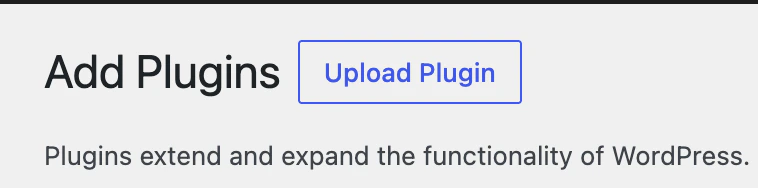
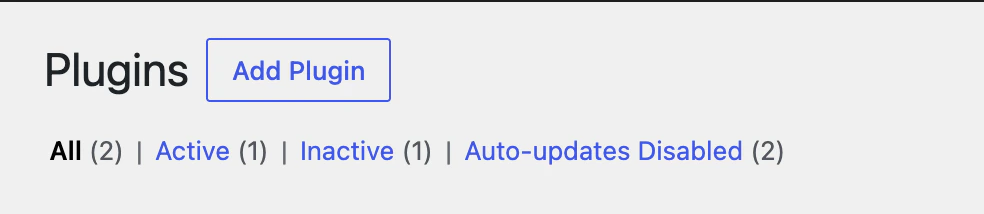 Click the **Upload Plugin** button at the top of the page.
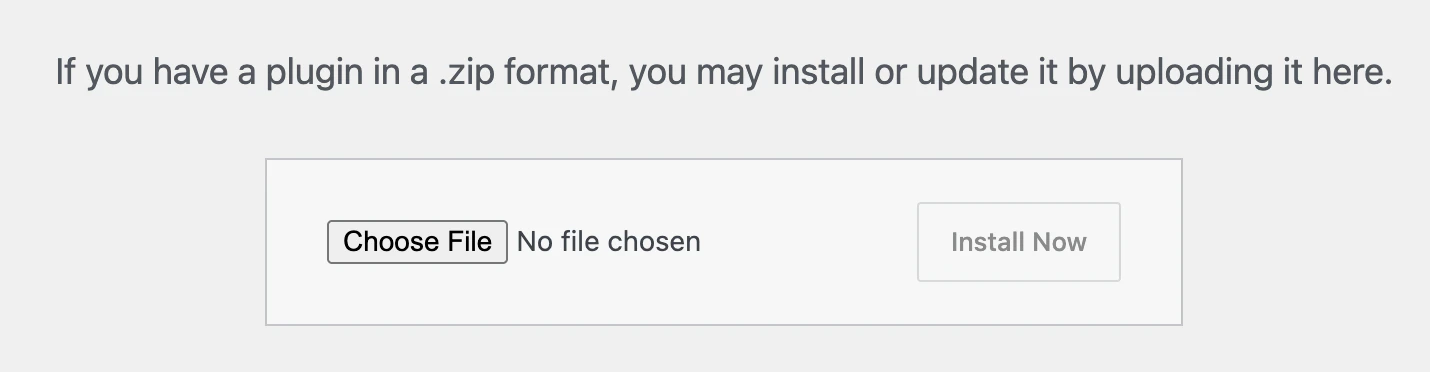
 Click **Choose File**, select the downloaded zip, then click **Install Now** and **Activate**.
 ## Configuration
Go to your [Pierview dashboard](https://pierview.ai/dashboard/configuration), generate your API key, then copy it from the **WordPress Agent Analytics API Key** section.
In your WordPress admin, go to **Settings** > **Pierview Analytics**.
Paste your API key into the **API Key** field, ensure **Enable Tracking** is checked, and click **Save Changes**.
Click **Send Test Event** to confirm the plugin can reach the Pierview endpoint. A success message confirms your site is connected.
## Detected AI Agents
The plugin matches User-Agent strings against 25+ known AI patterns:
| Agent | Patterns detected |
| --------------- | --------------------------------------------------------------------------------------------- |
| ChatGPT | GPTBot, ChatGPT-User, OAI-SearchBot |
| Claude | ClaudeBot, Claude-User, Claude-SearchBot, anthropic-ai |
| Perplexity | PerplexityBot, Perplexity-User |
| Gemini / Google | Google-Extended, GoogleAgent-Mariner, Google-CloudVertexBot |
| Grok / xAI | GrokBot, xAI-Grok, Grok-DeepSearch |
| Microsoft | Bingbot |
| Apple | Applebot, Applebot-Extended |
| Meta | FacebookBot |
| Amazon | Amazonbot |
| DuckDuckGo | DuckAssistBot |
| Others | Cohere, Mistral, DeepSeek, You.com, ByteDance, Diffbot, Phind, Huawei, Common Crawl, Allen AI |
## Privacy Settings
The plugin includes built-in privacy controls under the **Privacy** tab in plugin settings.
**Query parameter redaction**: Strip sensitive values from tracked URLs before they are sent to Pierview. For example, add `token` or `session_id` to prevent those values from leaving your server.
**Path exclusions**: Exclude entire sections of your site from tracking by prefix. For example, adding `/checkout/` or `/members/` ensures those paths are never reported.
The following are always excluded, regardless of settings:
* WordPress admin pages
* REST API requests (`/wp-json/`)
* Login page (`/wp-login.php`)
* Feed pages
## Data Collected
Each tracked AI visit sends the following to Pierview:
| Field | Description |
| ------------ | ------------------------------------------------ |
| `user_agent` | Full User-Agent string |
| `agent_name` | Normalized agent name (e.g. `chatgpt`, `claude`) |
| `host` | Your site's hostname |
| `path` | Request path (after redaction rules are applied) |
| `method` | HTTP method |
| `referer` | HTTP Referer header, if present |
| `client_ip` | Visitor IP address |
| `timestamp` | UTC timestamp of the visit |
IP addresses are included in tracked events and are necessary for accurate bot tracking, they allow Pierview to deduplicate visits, identify known bot IP ranges, and distinguish real AI agents from spoofed User-Agent strings.
## Next Steps
* View your AI agent traffic in the [Pierview dashboard](https://pierview.ai/dashboard)
* Track which pages AI agents visit most under [Citations](/core-features/analysis/citations)
* Connect the [MCP Server](/integrations/mcp-server) to query your data from Claude or Cursor
## Configuration
Go to your [Pierview dashboard](https://pierview.ai/dashboard/configuration), generate your API key, then copy it from the **WordPress Agent Analytics API Key** section.
In your WordPress admin, go to **Settings** > **Pierview Analytics**.
Paste your API key into the **API Key** field, ensure **Enable Tracking** is checked, and click **Save Changes**.
Click **Send Test Event** to confirm the plugin can reach the Pierview endpoint. A success message confirms your site is connected.
## Detected AI Agents
The plugin matches User-Agent strings against 25+ known AI patterns:
| Agent | Patterns detected |
| --------------- | --------------------------------------------------------------------------------------------- |
| ChatGPT | GPTBot, ChatGPT-User, OAI-SearchBot |
| Claude | ClaudeBot, Claude-User, Claude-SearchBot, anthropic-ai |
| Perplexity | PerplexityBot, Perplexity-User |
| Gemini / Google | Google-Extended, GoogleAgent-Mariner, Google-CloudVertexBot |
| Grok / xAI | GrokBot, xAI-Grok, Grok-DeepSearch |
| Microsoft | Bingbot |
| Apple | Applebot, Applebot-Extended |
| Meta | FacebookBot |
| Amazon | Amazonbot |
| DuckDuckGo | DuckAssistBot |
| Others | Cohere, Mistral, DeepSeek, You.com, ByteDance, Diffbot, Phind, Huawei, Common Crawl, Allen AI |
## Privacy Settings
The plugin includes built-in privacy controls under the **Privacy** tab in plugin settings.
**Query parameter redaction**: Strip sensitive values from tracked URLs before they are sent to Pierview. For example, add `token` or `session_id` to prevent those values from leaving your server.
**Path exclusions**: Exclude entire sections of your site from tracking by prefix. For example, adding `/checkout/` or `/members/` ensures those paths are never reported.
The following are always excluded, regardless of settings:
* WordPress admin pages
* REST API requests (`/wp-json/`)
* Login page (`/wp-login.php`)
* Feed pages
## Data Collected
Each tracked AI visit sends the following to Pierview:
| Field | Description |
| ------------ | ------------------------------------------------ |
| `user_agent` | Full User-Agent string |
| `agent_name` | Normalized agent name (e.g. `chatgpt`, `claude`) |
| `host` | Your site's hostname |
| `path` | Request path (after redaction rules are applied) |
| `method` | HTTP method |
| `referer` | HTTP Referer header, if present |
| `client_ip` | Visitor IP address |
| `timestamp` | UTC timestamp of the visit |
IP addresses are included in tracked events and are necessary for accurate bot tracking, they allow Pierview to deduplicate visits, identify known bot IP ranges, and distinguish real AI agents from spoofed User-Agent strings.
## Next Steps
* View your AI agent traffic in the [Pierview dashboard](https://pierview.ai/dashboard)
* Track which pages AI agents visit most under [Citations](/core-features/analysis/citations)
* Connect the [MCP Server](/integrations/mcp-server) to query your data from Claude or Cursor