> ## Documentation Index
> Fetch the complete documentation index at: https://www.pierview.ai/docs/llms.txt
> Use this file to discover all available pages before exploring further.
# Sanity CMS Integration
> Automatically publish AI-generated content to your Sanity Content Lake
## Overview
The Sanity integration lets you automatically generate and publish SEO-optimized content directly to your Sanity project. Set up a content schedule, connect your Sanity dataset, and new articles will be created as documents in your Content Lake, ready to review and publish from Sanity Studio.
Content is converted from markdown to **Portable Text** so it renders correctly in rich-text fields.
## Step 1: Create a Sanity API Token
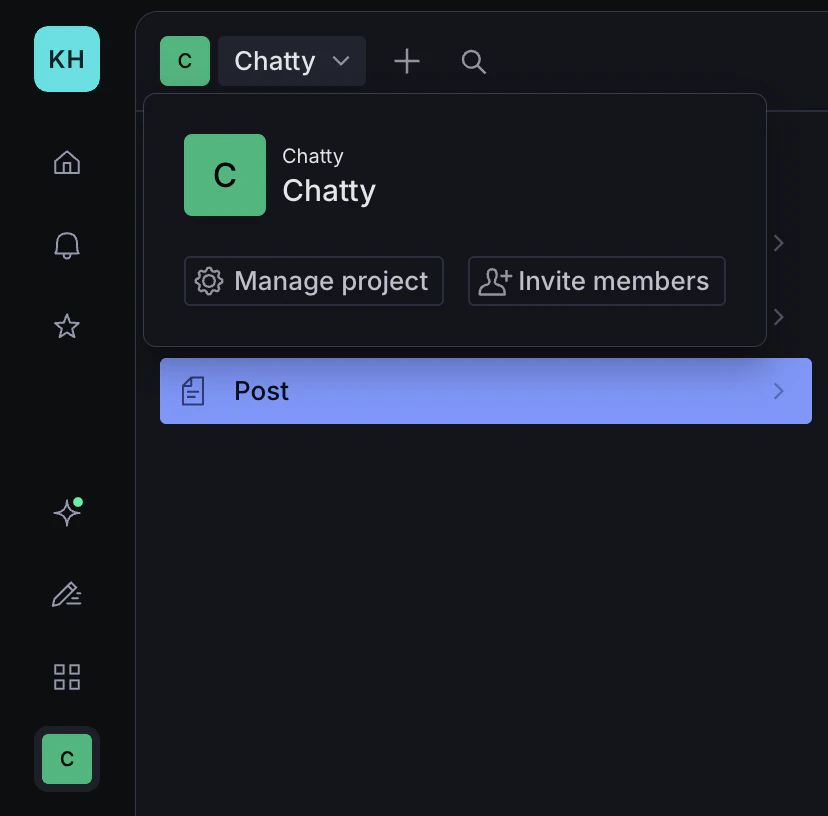
1. Open Sanity Studio and click your **project name** in the top-left corner. A dropdown will appear, click **Manage project**.
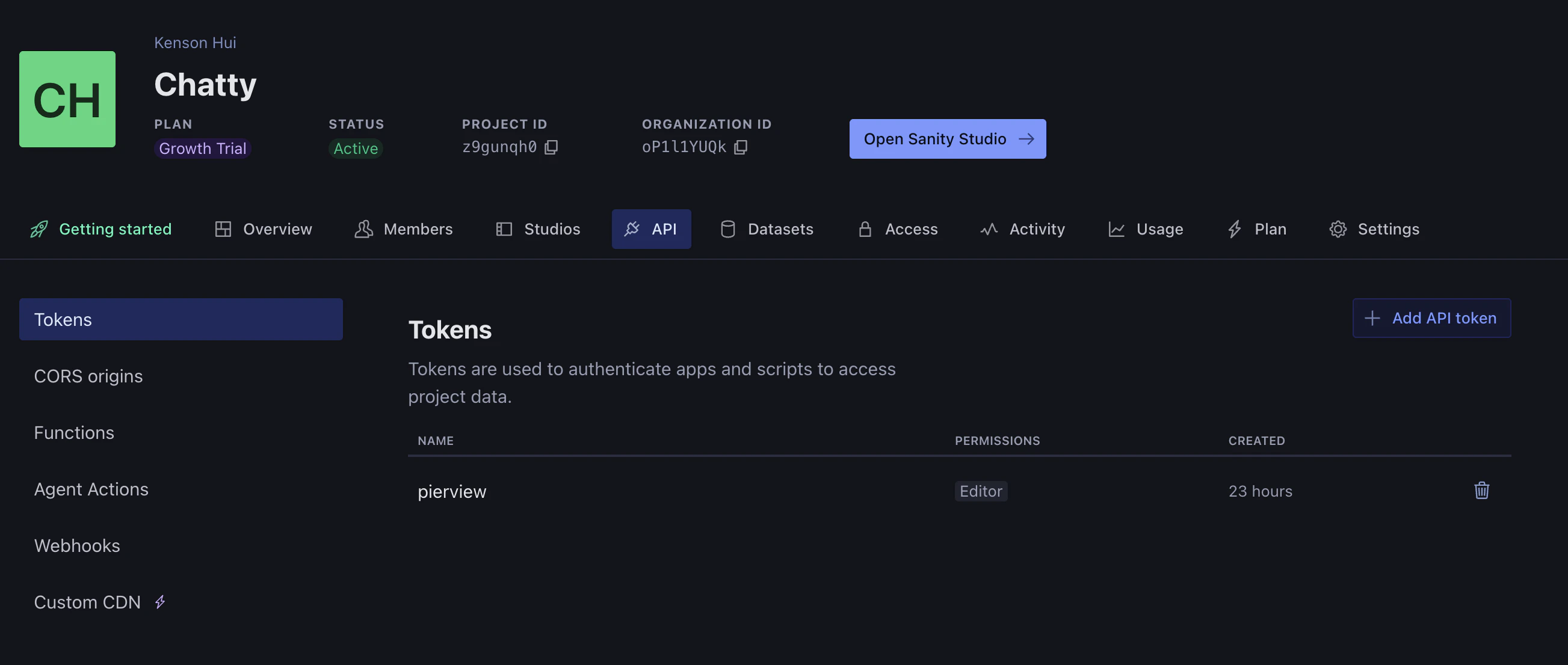
 2. In the management portal, click the **API** tab in the top navigation.
3. Select **Tokens** from the left sidebar, then click **Add API token**.
2. In the management portal, click the **API** tab in the top navigation.
3. Select **Tokens** from the left sidebar, then click **Add API token**.
 4. Give the token a name (e.g. `Pierview`), select **Editor** under Permissions, then click **Save**.
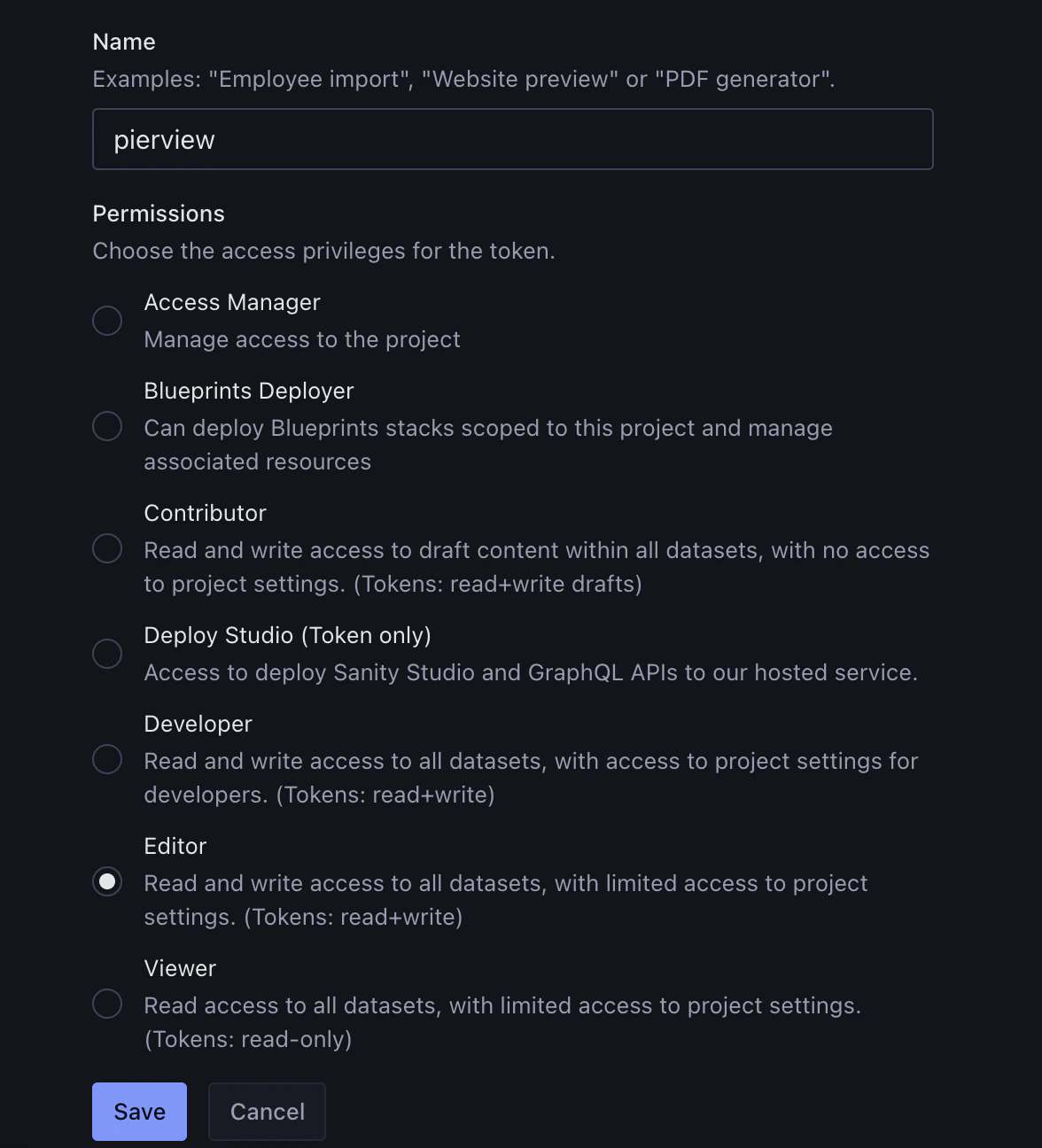 The token needs **Editor** (write) access to create documents. Viewer-only tokens will not work.
5. Copy the token, you'll paste it into Pierview shortly.
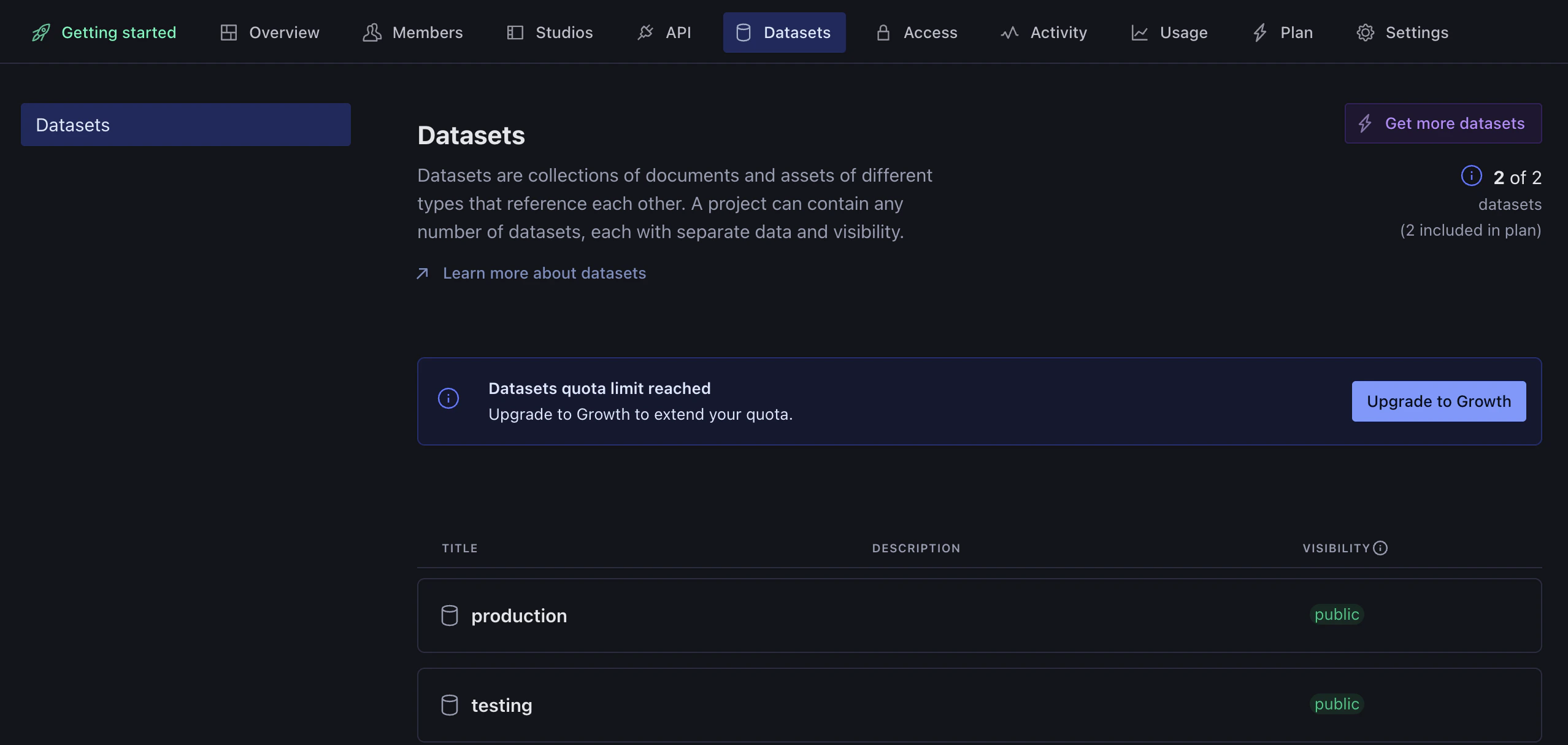
6. While you're here, click the **Datasets** tab to confirm which dataset you want to publish content to. The dataset name (e.g. `production`) is what you'll enter in Pierview.
The token needs **Editor** (write) access to create documents. Viewer-only tokens will not work.
5. Copy the token, you'll paste it into Pierview shortly.
6. While you're here, click the **Datasets** tab to confirm which dataset you want to publish content to. The dataset name (e.g. `production`) is what you'll enter in Pierview.
 7. Note your **Project ID** (shown at the top of the management page at [sanity.io/manage](https://www.sanity.io/manage)), you'll need it in the next step.
## Step 2: Connect Pierview to Sanity
The setup is a 3-step wizard: credentials → document type → field mapping.
**Credentials**
1. In Pierview, go to [Settings → Integrations → CMS Integrations](https://pierview.ai/dashboard/configuration/integrations) and click **Connect** next to Sanity.
7. Note your **Project ID** (shown at the top of the management page at [sanity.io/manage](https://www.sanity.io/manage)), you'll need it in the next step.
## Step 2: Connect Pierview to Sanity
The setup is a 3-step wizard: credentials → document type → field mapping.
**Credentials**
1. In Pierview, go to [Settings → Integrations → CMS Integrations](https://pierview.ai/dashboard/configuration/integrations) and click **Connect** next to Sanity.
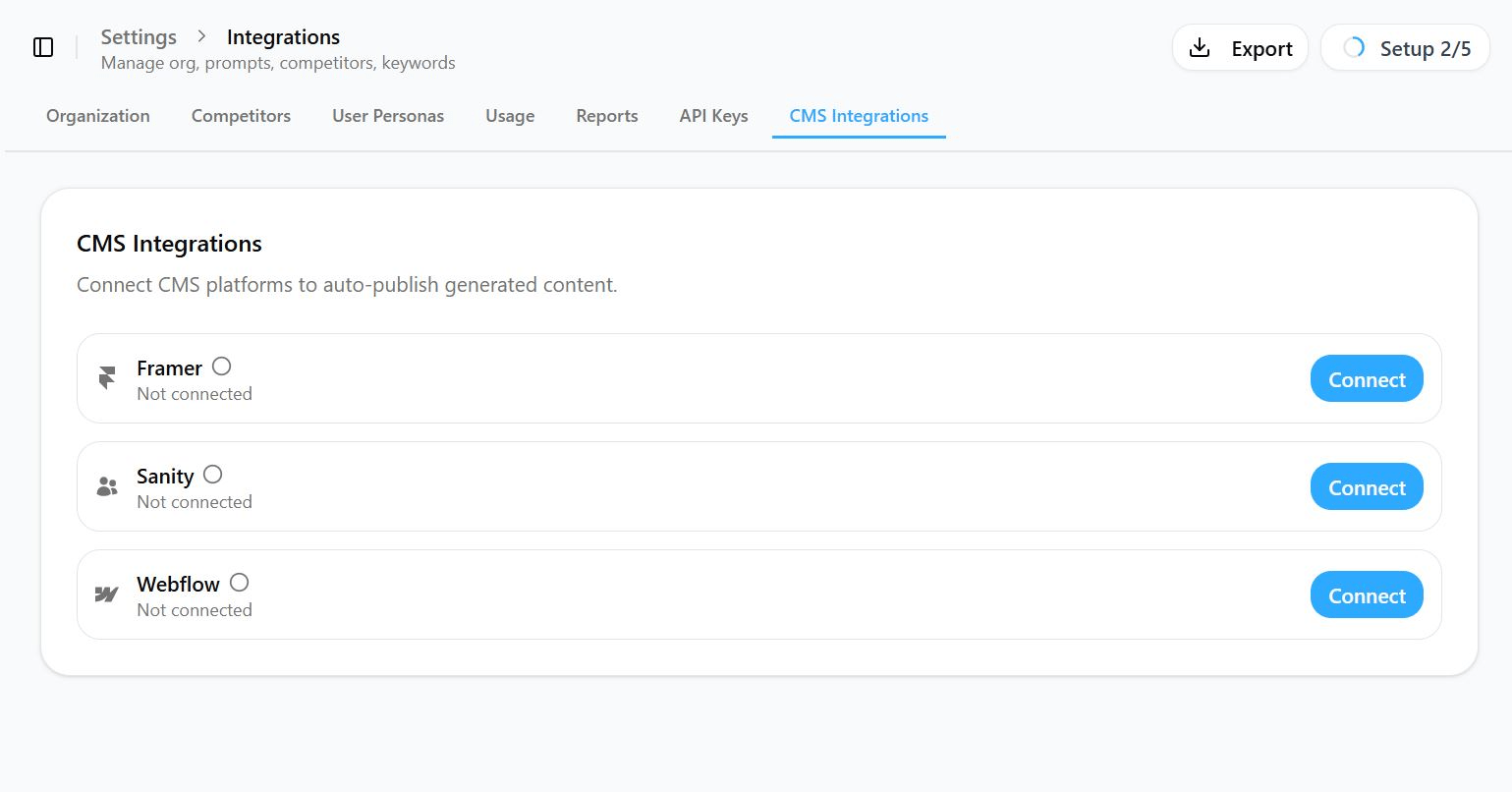 2. Enter your **Project ID**, **Dataset** (default: `production`), and paste in your **API Token**.
3. Click **Next**, Pierview will verify the credentials and fetch your document types.
**Document Type**
4. Choose the **document type** that content should be published as (e.g. `post`, `article`, `blogPost`). The dropdown is populated from your actual Sanity schema.
5. Click **Next**.
**Field Mapping**
6. Map the four fields to the corresponding field names in your chosen document type:
| Pierview Field | What it sets | Required |
| -------------- | -------------------------------- | -------- |
| Title | The document's title | Yes |
| Content | The article body (Portable Text) | Yes |
| Slug | The URL slug | No |
| Date | Publication date | No |
7. Click **Save** to finish.
## You're Connected!
Any content scheduled for generation will automatically be created in your Sanity Content Lake as a **draft**, where you can review it in Sanity Studio and publish it when ready.
You can also publish content on demand, go to any generated article and click **Publish** in the top-right sidebar to send it to Sanity immediately.
Content is published as a draft by default. You'll need to publish it from Sanity Studio to make it live.
## Troubleshooting
* Verify your Project ID and Dataset are correct
* Check that your API token is still valid and hasn't been revoked in [sanity.io/manage](https://www.sanity.io/manage)
* Make sure the integration is enabled (toggle is on in Pierview)
* Check that the document type you selected exists in your Sanity schema
Your API token may not have write access. Go to [sanity.io/manage](https://www.sanity.io/manage) → **API** → **Tokens** and create a new token with **Editor** permission, then update it in Pierview settings.
Make sure the Content field in your Sanity schema is a **Portable Text** (array) field, not a plain string. Pierview converts markdown to Portable Text blocks, plain string fields will not display the formatted content correctly.
The dropdown is populated from your Sanity project using a GROQ query. If your document type is missing, make sure at least one document of that type exists in the dataset, or that the type is defined and your API token has read access to the dataset.
Slug in Sanity is typically an object with a `current` field (e.g. `{ _type: "slug", current: "my-article" }`). Pierview handles this automatically, just make sure the field name in your mapping matches the field name in your schema exactly.
2. Enter your **Project ID**, **Dataset** (default: `production`), and paste in your **API Token**.
3. Click **Next**, Pierview will verify the credentials and fetch your document types.
**Document Type**
4. Choose the **document type** that content should be published as (e.g. `post`, `article`, `blogPost`). The dropdown is populated from your actual Sanity schema.
5. Click **Next**.
**Field Mapping**
6. Map the four fields to the corresponding field names in your chosen document type:
| Pierview Field | What it sets | Required |
| -------------- | -------------------------------- | -------- |
| Title | The document's title | Yes |
| Content | The article body (Portable Text) | Yes |
| Slug | The URL slug | No |
| Date | Publication date | No |
7. Click **Save** to finish.
## You're Connected!
Any content scheduled for generation will automatically be created in your Sanity Content Lake as a **draft**, where you can review it in Sanity Studio and publish it when ready.
You can also publish content on demand, go to any generated article and click **Publish** in the top-right sidebar to send it to Sanity immediately.
Content is published as a draft by default. You'll need to publish it from Sanity Studio to make it live.
## Troubleshooting
* Verify your Project ID and Dataset are correct
* Check that your API token is still valid and hasn't been revoked in [sanity.io/manage](https://www.sanity.io/manage)
* Make sure the integration is enabled (toggle is on in Pierview)
* Check that the document type you selected exists in your Sanity schema
Your API token may not have write access. Go to [sanity.io/manage](https://www.sanity.io/manage) → **API** → **Tokens** and create a new token with **Editor** permission, then update it in Pierview settings.
Make sure the Content field in your Sanity schema is a **Portable Text** (array) field, not a plain string. Pierview converts markdown to Portable Text blocks, plain string fields will not display the formatted content correctly.
The dropdown is populated from your Sanity project using a GROQ query. If your document type is missing, make sure at least one document of that type exists in the dataset, or that the type is defined and your API token has read access to the dataset.
Slug in Sanity is typically an object with a `current` field (e.g. `{ _type: "slug", current: "my-article" }`). Pierview handles this automatically, just make sure the field name in your mapping matches the field name in your schema exactly.