> ## Documentation Index
> Fetch the complete documentation index at: https://www.pierview.ai/docs/llms.txt
> Use this file to discover all available pages before exploring further.
# Auto-Publishing
> Automatically generate and publish SEO content to your CMS on a schedule
## Overview
Auto-publishing lets Pierview generate SEO-optimized articles on a recurring schedule and push them directly to your connected CMS. Once set up, content creation and publishing happen automatically, no manual steps required.
Auto-publishing requires at least one CMS integration to be connected. Set up [Framer](/integrations/framer-integration), [Sanity](/integrations/sanity-integration), or [Webflow](/integrations/webflow-integration) first.
## How It Works
1. You choose which days of the week content should be generated.
2. On each scheduled day, Pierview generates a new article optimized for your brand and tracked keywords.
3. The article is automatically published to your connected CMS as a draft.
4. You review and publish it from your CMS when ready.
## Setting Up Auto-Publishing
1. In Pierview, go to **Content Creation**. You'll see an **Auto-Publish** box to the right of the content creation area. You can also visit this page directly from the sidebar.
2. Toggle auto-publishing **on**.
3. Select the days of the week you want content generated. We recommend **once or twice a week** to maintain a consistent publishing cadence without overwhelming your review queue.
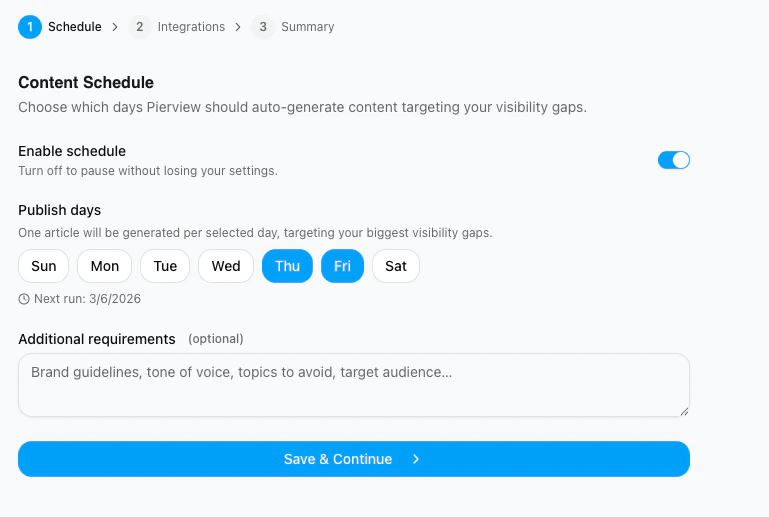 4. Make sure at least one CMS integration is connected and enabled. Content will be sent to all enabled integrations (Framer, Sanity, and/or Webflow) on each scheduled day.
## Publishing On Demand
You can also publish individual articles at any time without waiting for the schedule. Open any generated article and click **Publish** in the top-right sidebar to send it to your connected CMS immediately.
## Troubleshooting
Check that your CMS integration is connected and the toggle is enabled. Go to [Settings → Integrations → CMS Integrations](https://pierview.ai/dashboard/configuration/integrations) to verify the connection status.
Make sure auto-publishing is toggled on and at least one day of the week is selected. If the schedule looks correct, check that your account has remaining content generation credits.
4. Make sure at least one CMS integration is connected and enabled. Content will be sent to all enabled integrations (Framer, Sanity, and/or Webflow) on each scheduled day.
## Publishing On Demand
You can also publish individual articles at any time without waiting for the schedule. Open any generated article and click **Publish** in the top-right sidebar to send it to your connected CMS immediately.
## Troubleshooting
Check that your CMS integration is connected and the toggle is enabled. Go to [Settings → Integrations → CMS Integrations](https://pierview.ai/dashboard/configuration/integrations) to verify the connection status.
Make sure auto-publishing is toggled on and at least one day of the week is selected. If the schedule looks correct, check that your account has remaining content generation credits.